
WordPress plugin · v1.0.0
Sticky Bottom Bar — call & WhatsApp buttons for WordPress
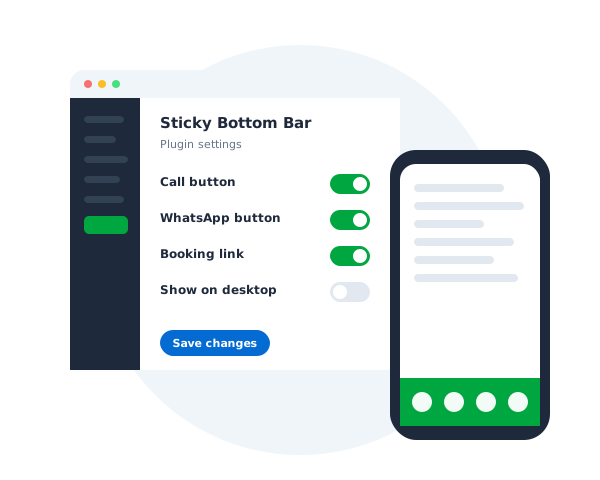
Sticky Bottom Bar is a lightweight WordPress plugin that keeps your most important actions — Call, WhatsApp, Appointment, Instagram, LinkedIn, Email and custom links — always visible at the bottom of the screen. More taps, more enquiries.
- WordPress 5.5+ · PHP 7.2+
- Mobile & desktop controls
- GPLv2 licence
Key features
Everything you need in a sticky lead bar
Click-to-call
Visitors call your business directly with one tap.
WhatsApp button
Open a WhatsApp chat instantly with your number.
Appointment / booking
Link to Calendly, booking systems or any URL.
Instagram & LinkedIn
Send visitors to your social profiles.
Email button
Open the visitor’s default email app.
Custom icons
Upload your own icon images from the Media Library.
Mobile & desktop controls
Configure visibility, height and icon size per device.
Custom colours & labels
Match your brand and show or hide text labels.
Why use it
Keep conversions one tap away
Important contact options get lost on mobile websites. A sticky bottom bar keeps them visible while visitors browse — without complicated coding.
- More phone call enquiries
- More WhatsApp chats
- More appointment bookings
- More email enquiries
- More social media visits
- Higher mobile conversions
Perfect for
- Business & corporate sites
- Doctors & clinics
- Real estate
- Hotels & restaurants
- Consultants
- Coaching & education
- Agencies & freelancers
- Local services
- E-commerce
Installation
Install in under two minutes
- Download the Sticky Bottom Bar plugin ZIP.
- In your WordPress dashboard go to Plugins → Add New → Upload Plugin.
- Upload the ZIP, click Install Now and then Activate.
- Open Sticky Bottom Bar from the admin menu.
- Configure buttons, links, colours, icon sizes and responsive settings.
- Save and visit your website to see the sticky bar in action.
| Plugin name | Sticky Bottom Bar |
| Version | 1.0.0 |
| Requires WordPress | 5.5 or higher |
| Requires PHP | 7.2 or higher |
| Licence | GPLv2 or later |
FAQs
Frequently Asked Questions
How do I add a phone call button?
Enter your phone number with country code (for example +911234567890) in the Phone icon’s value field. The plugin creates the tel: link automatically.
How do I add WhatsApp?
Enter your WhatsApp number with country code (for example 911234567890). The plugin generates the WhatsApp link for you.
Can I add an appointment booking link?
Yes — any booking URL, including Calendly, appointment systems or your own booking page.
Can I use my own icons?
Yes. Choose Custom as the icon style and upload an image from the Media Library.
Can I hide the bar on desktop or mobile?
Yes. Desktop and mobile visibility, bar height and icon size are controlled independently.
Is the plugin responsive?
Yes, with separate mobile and desktop layouts and a custom mobile breakpoint.